
Scorebook help
For the team scorekeeper. The scorebook runs in your phone's browser. Every tap is saved on your phone right away and sent at once (or as soon as there’s signal), so the Live page, the scoreboard on the video and the stats all update for everyone. You don't need an app.
Tip: Do a practice game in Training mode before your first real game. Nothing in it is saved.
Sign in
- Go to prospectrowbaseball.com/score (or tap Sign in on a team site).
- Enter the scorer password from your coach. It's different from the parents' stats password.
- You stay signed in on that phone. Use Sign out on a shared device.
Start a new game
- On the scorebook home, tap New game.
- Pick the team. Every game belongs to one team, and teams never mix.
- If the game is on the USSSA schedule, tap it under Upcoming USSSA games. The date, time, opponent and field fill in for you. Otherwise type the opponent and time.
- Set Home or Visitor (next section), then check the lineup.
- Tap Start scoring ▶.
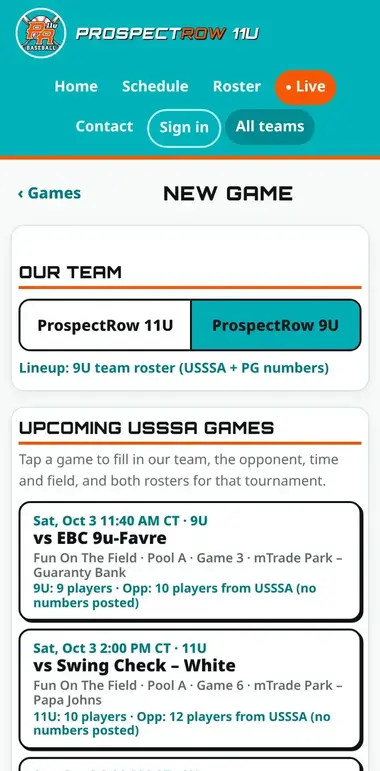
Tip: More options on the new-game screen holds the pitch limit, run rule, time limit and batting-order style (for example continuous batting, where everyone bats).
Home or Visitor
Tap VISITOR if we bat first (top of the inning) or HOME if we bat second (bottom). USSSA games fill this in from the schedule, but check it against the umpire's card. The scoreboard, the line score and the ▲/▼ inning arrow all depend on it.
Tip: If you got it wrong after the game started, use More → Fix game state or edit the game. Don't start a new game.
Lineups and the number pad
- A new game starts with our batting order and positions from that team's last real game (TEST games don't count). Drag players to reorder them, or move them to the Bench.
- Change the order from the scoring screen (before or during the game, even without signal): More → ↕ Batting order. Drag the big ☰ handle (or tap ▲ ▼), pick the team at the top, then tap Save batting order. The batter who's up next stays up next, and the new order follows. Past at-bats stay with each player, and the sheet and box score show the new order.
- Use Add player for a player who isn't listed: pick someone From the bench or add a New player.
- Opponent lineup: use whatever you have. Numbers only, names only, tapping from their roster and a photo all work, and you can mix them.
- Their roster is already there: a new game lists the opponent's USSSA roster (full names, and numbers when known) on their bench. Under Who's up?, tap the name of whoever comes up to bat, or type their number on the pad.
- Numbers are remembered: a number you type for one of their players is saved and filled in next time we play that team, in either age group (matched by team and player name). It never replaces a number you typed.
- Same opponent again: their batting order from the last game against us loads first. Roster players who weren't in it wait on their bench.
- Number but no name? Typing a number nobody has yet asks Who is #27? with the roster names (optional). For players already in the order, use More → 🔗 Match #s to names. Their stats stay with them.
- 📷 Lineup photo (optional, needs signal): More → 📷 Opponent lineup from a photo. Snap their lineup card, then check and fix every row and tap Apply. Players already listed are reused, not added twice. If it can't read the photo, enter the lineup by hand as usual.
- During the game, tap the batter's #number in the AT BAT box to open the number pad (Who's up?). Type the number of whoever actually came up. This is the quickest way to fix a batter who's out of order or to enter an opponent you didn't know.
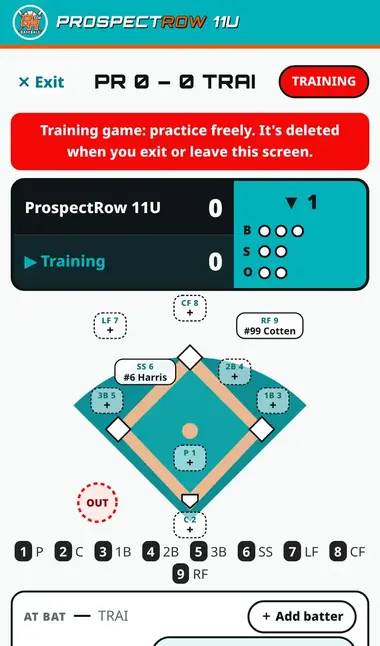
Tip: + Add batter adds a late arrival to the order. Substitution, Courtesy runner, Change position and Pitching change are under More. Tap the P: chip to set or change the pitcher. It also shows the pitch count against the limit.
Pitches: Ball, Strike, Foul
Tap one button per pitch. The count, the pitch count and the out dots update right away.
- BALL: ball four becomes a walk on its own.
- STRIKE swinging or STRIKE looking: strike three is a strikeout (swinging or looking).
- FOUL: pick Just a foul (a strike until two strikes) or Caught – foul out. You can also say who caught it.
- IN PLAY: the ball was put in play. See below.
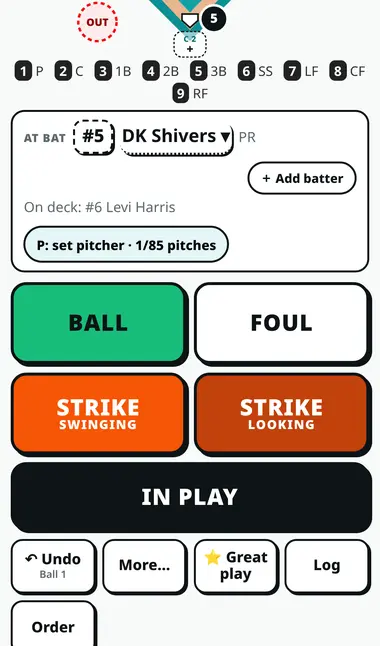
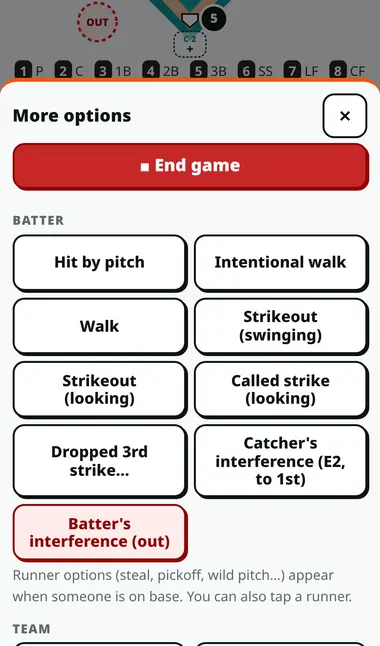
The More button holds the rarer plays: Hit by pitch, Intentional walk, Wild pitch, Passed ball, Balk, Caught stealing, Pickoff and the interference calls.
Strikeouts and the dropped 3rd strike
- Strike three ends the at-bat as Strikeout (swinging) or Strikeout (looking).
- If the catcher drops strike three, use Dropped 3rd strike… and pick what happened: Dropped, thrown out at 1st (K 2-3), Dropped, reached 1st safely, or reached on K + WP, K + PB or K + E2.
- The batter can't run on a dropped third strike when 1st base is occupied with fewer than 2 outs. The scorebook stops you and says so.
Tip: The pitcher still gets the strikeout even when the batter reaches on a dropped third strike.
Balls in play: fielder and throws
- Tap IN PLAY.
- Optional, for the spray chart: open 📍 where it went + throws, tap where the ball went, then tap the fielders in order (for example 6, 4, 3). If you don't know the spot, tap No spot, just fielders.
- Tap the result: Single, Double, Triple, Home run, Ground out, Fly out, Line out, Pop out, Error, Fielder's choice, Double play, Sac bunt or Sac fly.
- After every ball in play (hit, out, error, fielder's choice, sacrifice) the scorebook asks Who fielded it?: one tap on the position (1 P to 9 RF). This step is required, and it puts the ball on the spray chart. For an error it asks who made the error. For a home run over the fence, tap Over the fence. Outs, fielder's choices and sacrifices then ask Thrown to?: keep tapping fielders, then tap ✓ Done / no throw. If you already tapped the fielders on the field above, it doesn't ask again. This works without signal and in Fix a play.
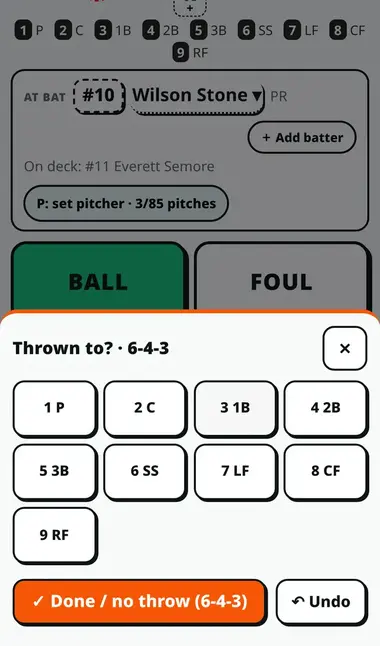
Tip: The exact spot is optional. Without it, the ball shows at the fielder who fielded it. The stats are the same either way.
Runners: advancing and tag-ups
After a ball in play, runners move ahead on their own. A confirm step lets you change where each runner ended up: safe at a base, scored or out.
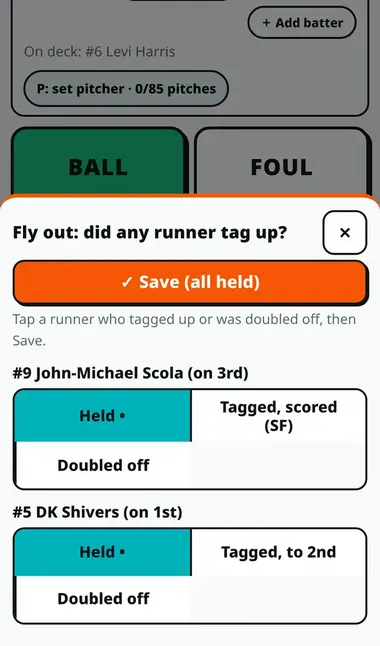
- Fly outs: the scorebook asks did any runner tag up? Tap each runner who tagged up and advanced (or was doubled off), then Save.
- Any time: drag a runner on the diamond to the base where they ended up. Drag them to OUT if they were put out.
- Runners move between pitches: tap 🏃 Runners (under the pitch buttons when someone is on base). Pick why: Stolen base, Wild pitch, Passed ball, Balk, Defensive indifference, Error, On the throw or Overthrow. For an error or overthrow, tap the fielder (1 P to 9 RF). Then tap where each runner ended up (Stays, 2nd, 3rd, Home) and tap ✓ Save. Wild pitch, passed ball and balk start with every runner up one base. The others start with the lead runner up one.
- Wild pitch or passed ball on a pitch you haven't entered yet: under On which pitch? tap Ball or Strike, and the pitch counts too. If you already tapped BALL, leave it on Pitch already entered.
- Who gets credit: only a stolen base counts as SB. A wild pitch or balk is charged to the pitcher, a passed ball to the catcher, and an error or overthrow to the fielder you tapped (and the team's E). Defensive indifference and On the throw charge no one. They show under each team in the box score.
- Dragging a runner, or tapping a runner, asks the same question. Caught stealing and picked off: tap the runner. All of this works without signal and in Fix a play.
Double plays
- Tap IN PLAY → Double play.
- Tap the fielders in order (for example 6-4-3), then Done.
- Answer Double play: who's out? by picking the two runners (the batter counts as one).
- Check the runner confirm step, then save.
Tip: A line drive caught with a runner doubled off is usually a Line out plus that runner marked out in the tag-up step.
Interference
- Catcher's interference (E2, to 1st): the batter goes to 1st and the catcher is charged with an error.
- Batter's interference: pick Batter out (BI 2), or Runner out instead if the umpire calls the runner out (for example on a steal of home with fewer than 2 outs).
- Use Send runner back (umpire) when the umpire returns runners to their bases.
Both are in More.
Pickoffs
- Tap More → Pickoff and choose the base.
- Pick Pickoff throw (runner safe) or Picked off (runner out).
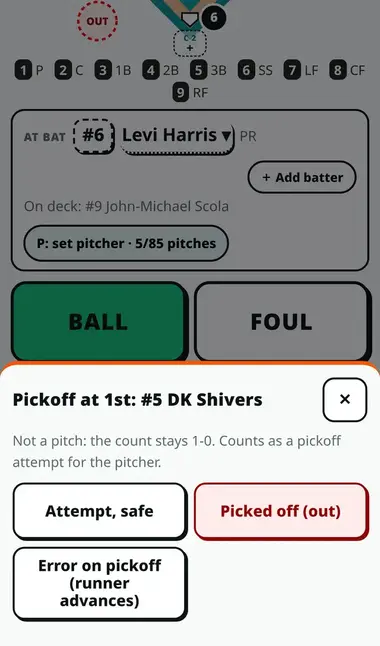
Tip: Pickoff throws count toward the pitcher's pickoff attempts in the box score. They don't count as pitches.
Undo and Fix game
- ↶ Undo takes back the last thing you entered (or the last play you fixed). It shows what it will undo. Tap it again to keep going back.
- Log shows the play-by-play, so you can check what was recorded. To change an older play, see Fix a play.
- More → Fix game state corrects the score, inning, outs, count or bases without undoing plays (for example to match the umpire after a missed play). Runs added this way don't credit any player.
Tip: If you notice a mistake right away, use Undo or Fix a play rather than Fix game state, because the stats stay right.
Fix a play (change, delete, add a missed one)
Got a play wrong a few batters ago? You don't have to undo everything after it. Fix just that play, and the score, outs, inning, runners, who's up, pitch counts, box score and stats all update on their own.
- Unlock the screen if it's locked. Then tap Log (or More → ✏️ Fix a play) and tap ✏️ Fix a play.
- Plays are listed by half-inning, newest first, with the batter, the count, the outs and the pitch count. Tick Show every pitch to see balls and strikes too. Tap the play you want.
- ✏️ Change this play: the scoring screen goes back to that moment (an orange box says Fixing). Enter the play the way it really happened with the usual buttons. What you entered before is marked (was).
- ➕ Add a missed pitch or play before this: enter the pitch, steal or play you forgot. It goes in just before the play you picked.
- 🗑 Delete this play: it asks you to confirm. A deleted play stays in the list, so you can Restore it later.
- Changed your mind? ✕ Cancel (no change) leaves without changing anything, Put back the original undoes a change, and ↶ Undo takes back the last fix.
- ⚠ Doesn't fit: if a fix makes a later play impossible (for example a runner who is now out was shown scoring), that play is marked ⚠ Doesn't fit and skipped until you fix it. A bar on the scoring screen tells you how many need a look. Tap it, then change or delete each marked play.
- It works after End game too (tap ✏️ Fix a play on the final screen). The final score, the W or L, the box score and the stats update on the site.
- Every change is saved with the time and the phone it was made on, and the original play is kept. Tap Changes to this play to see them.
- Lineup entries (batting order, bench, adding a player) can't be changed in place. Delete them and enter them again.
Tip: Two phones scoring the same game? If the other phone changes the game while you're fixing a play, your screen refreshes to the latest before you save.
No signal at the field?
Keep scoring. Every pitch and play is saved on your phone first, and the scoring screen updates right away. When signal comes back, the plays send by themselves, in order, and nothing is sent twice.
- Under the top bar you'll see 📱 Saved on this phone - will send when signal returns (3 plays waiting). When everything is in, it says ✓ All plays sent.
- Before the game, open it once with signal (or just open the scorebook home that day, which saves today's games on your phone). Then the game opens even with no signal, and so does the scorebook home.
- Undo, Fix a play, the batting order (More → ↕ Batting order), the screen lock and End game all work without signal. An ended game becomes final when its plays are sent.
- Plays that are waiting send as soon as the scorebook is open with signal, including after you reopen it later. You can lock your phone; nothing is lost. If the phone asks before you leave a page, it's because plays are still waiting. They stay saved, but they send only when the scorebook is open again.
- Live page viewers see the score catch up when the plays arrive.
- These need signal: starting a new game, the Lineup page, the clock buttons (the clock still starts by itself at the first pitch), Show on Live, highlight clips and the replay link.
- Two phones scoring the same game: plays from both are kept in the order they reach the site. If a waiting play no longer fits (for example the other phone already recorded that runner out), it's marked ⚠ Doesn't fit in Fix a play for you to fix.
Tip: Don't clear the browser's data or use a private tab while plays are waiting, because that deletes them from the phone.
Before the first pitch: the checklist
- When you open a game that hasn't started, a short Before the first pitch list shows: the team (11U or 9U) and opponent, Home or Visitor, our lineup (with a pitcher and catcher), their lineup, the game clock and whether the Live page stream link is set.
- ! means something to look at. Tap Fix lineup or game details to change it, or Looks good to hide the list. It goes away by itself at the first pitch.
- On the scorebook home, a banner shows when a team's scheduled game has started (or starts in 10 minutes) and nobody has started a scorebook game for it. Tap Start it now.
Pitch counts and rest days
- Under the batter, P: name · 42/85 pitches shows our pitcher's count and the limit. It turns yellow 10 pitches before the limit and red at it, and you get one warning at the limit. Opponent pitchers show the count only.
- The limit comes from the team's rule (11U 85, 9U 75 unless the site manager changes it). To use a different number for one game, type it in Pitch-count warning at when you start or edit the game. 0 turns it off.
- When you change pitchers, our players still resting from an earlier game show 🛑 rest till a date. It's a reminder only; you can still pick him.
- Parents can see everyone's rest days under Stats → Pitcher rest.
Scouting notes on opponents
Keep notes on the teams we play, and on their players. Only scorers can see them (they're behind the scorer sign-in, never on the public site or the parents' stats). 11U and 9U each have their own notes.
- On the scorebook home, tap 📋 Scouting notes. Pick 11U or 9U at the top.
- Opponents on the schedule come first, with their next game time, our record against them and how many notes there are. Not listed? Type the name under Another opponent.
- Write Team notes (pitchers, speed, where they hit, defense) and tap Save team notes.
- For a player, pick them in Add a player note (their USSSA roster and anyone we've scored against them are listed) or type the number and name, write the note and tap Save player note. Change or delete a note on its card.
- Before the first pitch, the scoring screen shows a 📋 Scouting box for that opponent: the team notes, our past results against them (tap All notes for everything, with box score links). It goes away at the first pitch.
- When one of their players with a note comes up to bat, the note shows under At bat. Tap it to see all notes.
- Any time: More → 📋 Scouting notes.
- Past results come from USSSA and our own scorebook games.
- The notes for a game are saved on the phone when you open it, so they show without signal too. Writing notes needs signal.
Tip: Notes are matched by the opponent's name, so use the name as it appears on the schedule.
The game clock
- Games with a time limit show a clock at the top. It starts on its own at the first pitch, or you can tap it and choose ▶ Start now.
- Tap the clock for its controls: ⏸ Pause or ▶ Resume, add or take away minutes, set the exact time left, or change the Time limit (minutes). For example, 105 means 1:45, and 0 means no clock.
- You get a warning at 10 minutes and at 5 minutes left. Viewers see the clock on the Live page and the video scoreboard, which shows TIME EXPIRED at 0:00.
Tip: USSSA pool and bracket games can have different time limits. Check the time with the umpire at the plate meeting.
The screen lock
Tap 🔒 Lock at the top of the scoring screen before you put the phone in your pocket or hand it to someone. While it's locked, taps do nothing. To unlock, press and hold the Hold to unlock button.
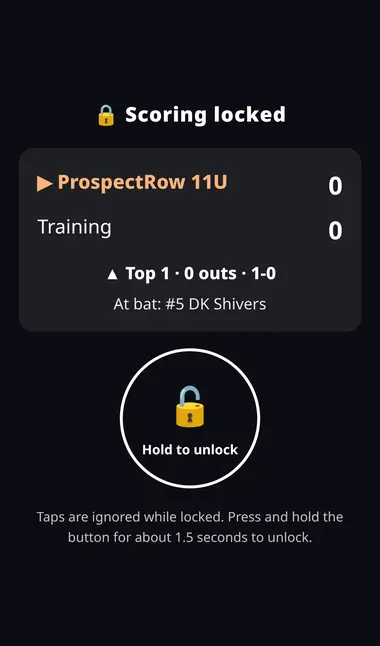
Tip: The scorebook also tries to keep your phone's screen from going to sleep during a game.
⭐ Great play
- Right after a great play, tap ⭐ Great play.
- Pick who made it.
It's added to the latest play. It becomes a highlight clip on the team's Highlights page and is linked to that moment in the replay. Under More, ⭐ Highlight clips lets you move each clip's start or end by 5 seconds.
Tip: Undo removes a great play you tapped by mistake. Changing a clip's times doesn't touch the game.
End game
- When the last inning is done, when the home team leads after the top half, or on a walk-off, a box pops up with End game or Add inning. Tap the one that matches the umpire. You can also just keep scoring.
- If the umpire calls it early (time limit, run rule, weather), tap More → End game and confirm.
- A final game goes on the schedule as W or L with a Box score link, and the team's record updates.
- If GoPro or YouTube was streaming, the stream link is saved as the game's replay on its own. More → ▶ Replay link lets you change it.
- Ended it by mistake? Undo reverses the ending.
⛈️ Weather or lightning delay banner
- Play stopped for weather? Tap More → ⛈️ Weather / lightning delay banner, change the text if you like (it starts as Lightning delay, resuming soon) and tap Show banner.
- Parents see it at the top of that team's Live page and home page. While it shows, an orange strip on your scoring screen has a Clear button: tap it when play resumes. It also goes away by itself after 3 hours.
- If the game clock is running, you can tick Also pause the game clock. Start the clock again from ⏱ when play resumes. The banner needs signal.
⭐ Player of the game
- After End game, the final screen suggests a Player of the game from the stats (hits, extra-base hits, RBIs, runs, walks, steals, and for pitchers outs and strikeouts).
- Tap the suggested name to save it, Someone else to pick another of our players, or Skip. You can change it later on the same screen.
- Your pick is private: it goes to the Coaches page, where a coach can change it and tap Agree / Publish. Only then does it show on the team's home page and Live page (for one day) and on the score card. It needs signal to save.
The scorebook sheet
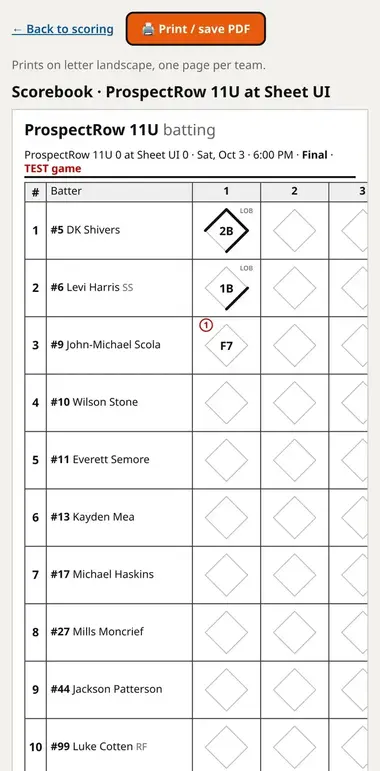
📄 Sheet (or More → Scorebook sheet) shows a classic paper-style scorebook page for each team, with pitch counts and the line score. Tap 🖨 Print / save PDF. It prints on letter-size landscape paper, one page per team.
Training and TEST games
- Training mode (from the scorebook home) is a practice game just for you. It isn't saved and is deleted when you leave.
- A game tagged TEST is a practice game the site manager sets up. It looks like a real game, but it never shows on the Live page, the video scoreboard, the stats or box scores, and it sends no alerts.
- Real games send the “we're live” phone alert at the first pitch. Practice in Training or a TEST game, never in a real game.
Stream link and Show stream now
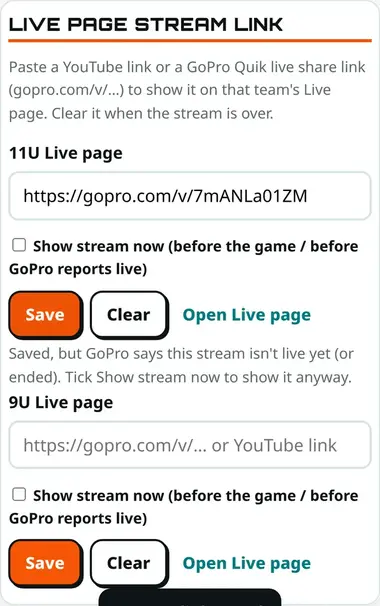
The Live page stream link card on the scorebook home puts video on a team's Live page. The full setup is on the Streaming help page.
- Paste the GoPro Quik share link (
gopro.com/v/…) or the YouTube link into that team's box and tap Save. - GoPro links show up once GoPro reports the stream as live. To show it before that (warm-ups, or when GoPro is slow to say it's live), tick Show stream now.
- Saving a link while the stream is live (or with Show stream now ticked) sends the “we're live” alert, at most once per game.
- When you tap End game, the link (and Show stream now) is cleared by itself and kept as that game's replay, so the next game never shows an old stream. To take a stream off sooner, tap Clear.
Tip: ☆ Show on Live & overlay (in More) picks which game the team's Live page and video scoreboard follow. A new game takes over when its first pitch is entered.