
Live page help
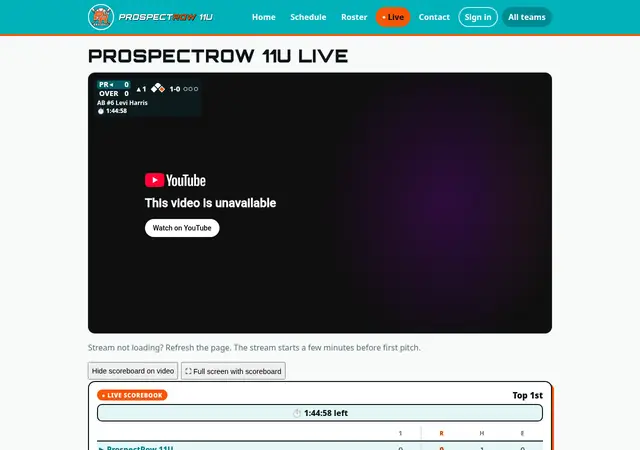
Each team has its own Live page (tap Live on the team's site). It plays the game stream when there is one, with the live score next to it.
Watching a game
- Tap play on the video. On phones, tap the speaker icon if there's no sound (browsers start videos muted).
- No video? The page follows the live scorebook instead: score, inning, count, outs, runners on base, and the latest plays. It updates by itself, so you don't need to refresh.
- When the game is over, the page shows the final score, a Box score link and ▶ Watch the replay if the game was streamed.
- Before a game, the page shows Next up with the time and field.
The scoreboard on the video
A small scoreboard sits on top of the video: score, inning (▲ top or ▼ bottom), runners, count, outs, the batter and pitcher (with pitch count), and the game clock if there is one.
- To see the whole picture, tap Hide scoreboard on video.
- Tap Show scoreboard on video to bring it back. Your choice is remembered on that device.
Full screen
- Tap ⛶ Full screen with scoreboard for a full-screen video that keeps the scoreboard. Turn your phone sideways for the biggest picture.
- iPhone: Safari doesn't allow full screen with a scoreboard, so that button is hidden. The video's own full-screen button works, but without the scoreboard.
Tip: To leave full screen, press Esc on a computer or swipe down on a phone.
Live alerts on your phone
Get a notification when a game starts or the stream goes live, at most one per game. No account and no email are needed. Choose 11U, 9U or both.
iPhone or iPad (iOS 16.4 or newer)
- Open the team's Live page in Safari.
- Tap Share → Add to Home Screen → Add.
- Open the new PR icon on your Home Screen (Apple only allows alerts from there).
- On the Live alerts card, pick your team(s) and tap Subscribe, then Allow.
- Tap Send me a test alert to check that it works.
Android or a computer
- Open the team's Live page in Chrome, Edge or Firefox.
- On the Live alerts card, pick your team(s), tap Subscribe, then Allow.
- Tap Send me a test alert.
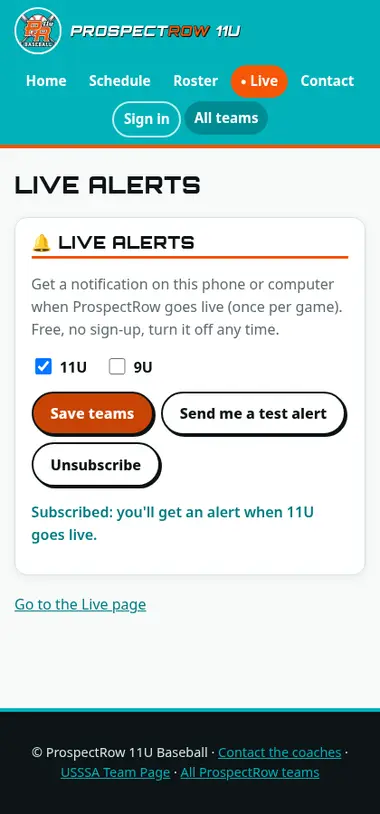
- Schedule changes (on unless you untick it): an alert when USSSA changes one of our game times, dates or fields, or posts a new game (like a bracket game, with the opponent or TBD). Several changes are put together in one alert, at most one every 30 minutes. Ranking and record updates never alert. To change it, tick or untick the box and tap Save teams.
- To stop the alerts, tap Unsubscribe on the same card.
- No test alert? Check that notifications are on for the browser (or the PR Home Screen app) in your phone's Settings, and that Focus or Do Not Disturb is off.
✉️ Email alerts
- Under Live alerts on the Live page there is an Email alerts sign-up (it shows once email sending is turned on). Enter your email, pick the team(s) and tick the emails you want: Go-live, Tournament preview (where and when we play, with directions and weather), Schedule changes (bundled, at most every 2 hours), Bracket outlook (one email when the bracket is posted, with the times we could play by seed), Tournament results (one email after the tournament) and Final scores (the score only).
- We send one email first: tap its confirm link, or nothing else is sent. Every email has an Unsubscribe link (one tap) and a link to change which emails you get.
- Nobody gets more than 8 emails a day. Emails are kept private; only the owner can see the list.
- For the owner: /owner/emails shows how many people signed up, exports the list, and lets you read each tournament results email before it goes out. It waits an hour, then sends on its own unless you tap Don't send.